Import your whole church from a spreadsheet in 15 minutes
Move from spreadsheets to one connected system in an afternoon — church groups, churches, cells, families, and people, all linked from day one.
If your church currently lives in a few spreadsheets and a group chat, you already have everything you need to get started. The import tool takes your existing lists and turns them into one living directory — where a follow-up updates the dashboard and a gift updates the profile, automatically.
Run a test first. Every import has a Test Mode that does a full dry run without changing your data. Always run it once, read the results, then import for real.
Before you start
You don’t need to prepare everything at once. Import in the order the system builds on itself: structure first, then people. Have these ready:
- A list of your church groups and churches (even if that’s just one of each).
- Your cell groups and who leads them.
- Your people, grouped by family where you can — names, contact details, and connection status.
Step 1 — Download the template
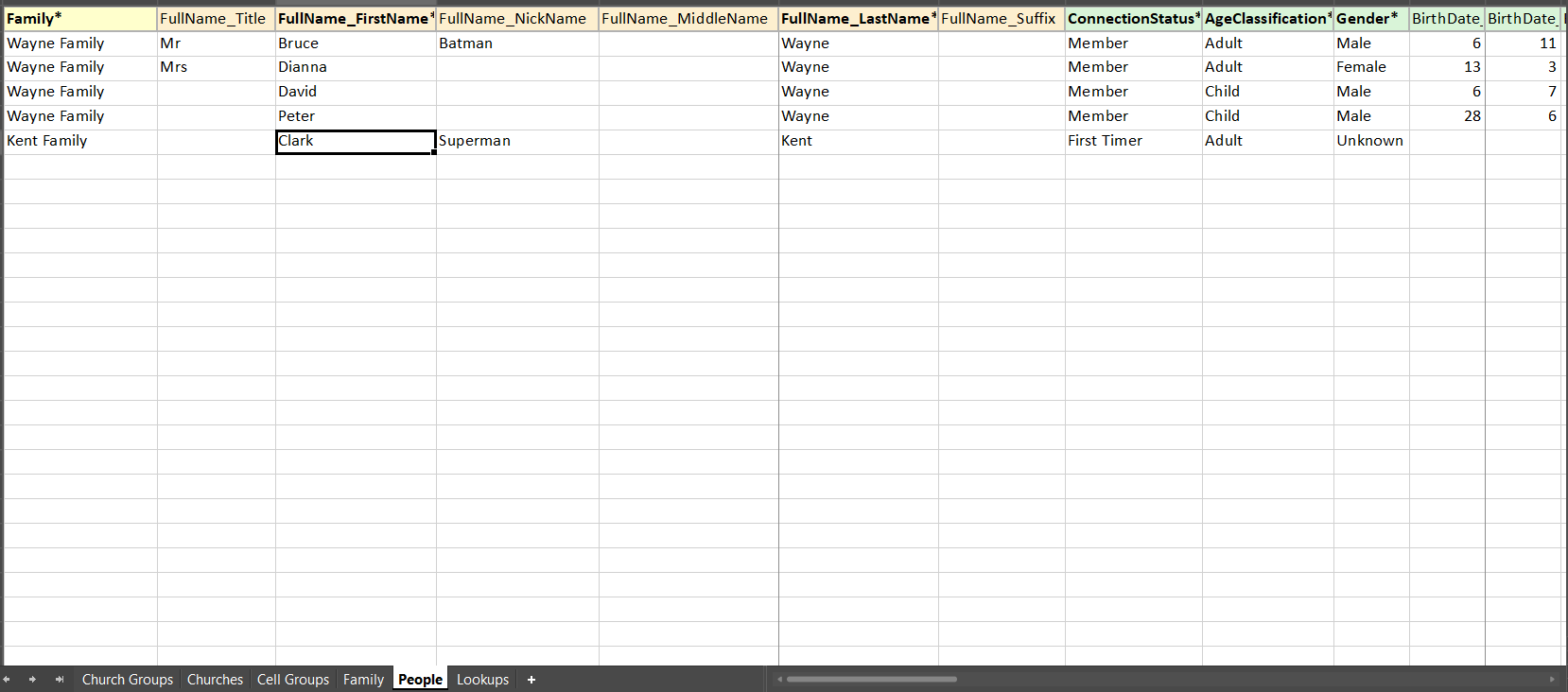
Open Administration → Data Import and click Download Import Template. It’s a single workbook with a tab for each level — Church Groups, Churches, Cell Groups, Family, and People — plus a Lookups tab that lists the exact values each column accepts.
Step 2 — Fill in your people
Copy your existing rows into the People tab. A few rules keep the import clean:
- Give everyone in the same household the same Family name — that’s what links them together and builds the family card.
- Use only the values shown on the Lookups tab for Connection Status, Age Classification, and Gender.
- Leave a field blank rather than guessing — you can complete it in-app later, and blanks won’t fail the import.
Step 3 — Test, then import
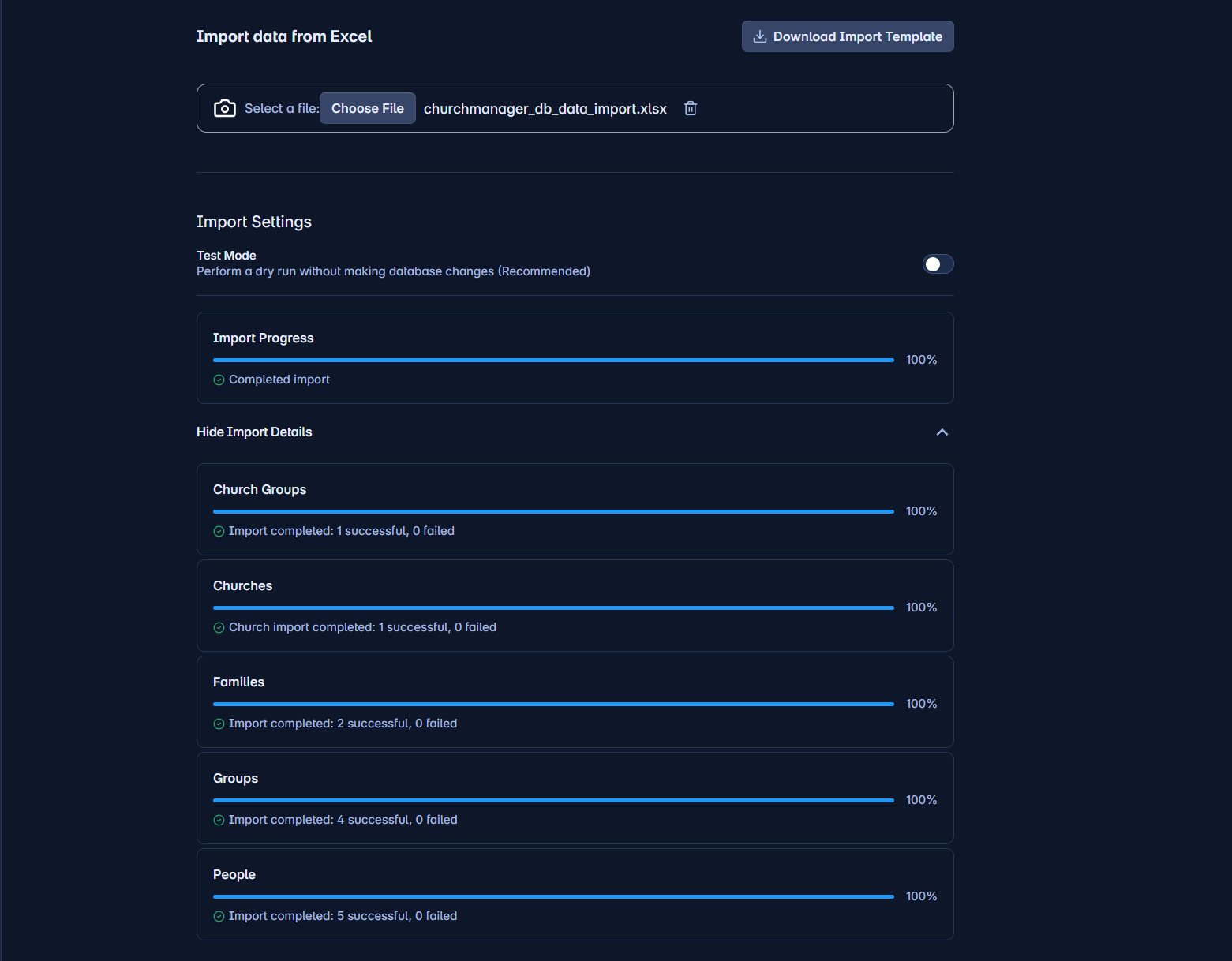
Back in Data Import, choose your file and leave Test Mode on. Run it. You’ll get a per-tab breakdown — how many records succeeded and how many failed, with the reason for each failure. Fix any flagged rows in your workbook, re-test until every tab reads 0 failed, then switch Test Mode off and import for real.
What happens next
The moment your people are in, the rest of the system comes alive. First-timers appear on the Follow-Through board ready for follow-up. Cell leaders can take attendance from their phones. Giving posts to the right profile. This is the Unity System™ — one import, and every corner of ChurchManager is working from the same trustworthy picture.
Next, walk through inviting your team and setting roles and permissions so everyone sees exactly what they should.